
How to create tables in Telegram
Use Postlyra to build Telegram tables visually, validate columns and publish a ready rich post example.
Updated:
Use this table templateOpen this template in Telegram
Example: three plans in one table
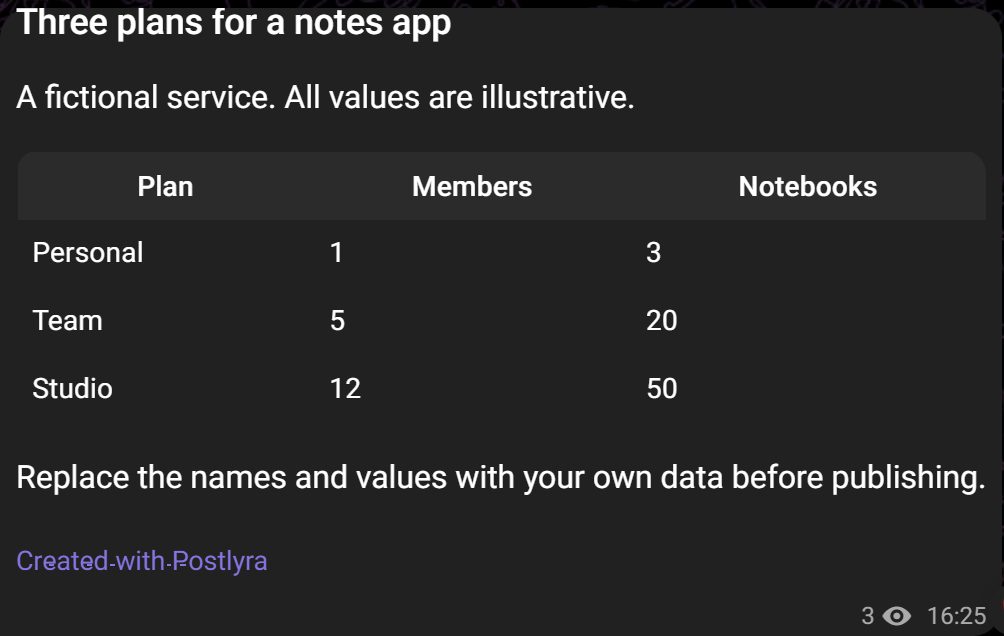
A fictional notes app with illustrative values. This is Postlyra’s HTML preview of the structure. The template contains the same table, ready to edit in your account.
Source text
Personal: 1 member, 3 notebooks. Team: 5 members, 20 notebooks. Studio: 12 members, 50 notebooks.
Structured post
Three plans for a notes app
A fictional service. All values are illustrative.
| Plan | Members | Notebooks |
|---|---|---|
| Personal | 1 | 3 |
| Team | 5 | 20 |
| Studio | 12 | 50 |
Replace the names and values with your own data before publishing.
See how it works
32 seconds, no audio. A step-by-step montage captured in Postlyra’s English interface: a ready-to-edit table, a cell edit, table settings and borders, preview, sending options and a destination check. The final frame shows the result of the earlier test delivery in Telegram. Pauses and intermediate actions are omitted.
Video transcript
- A ready-to-edit table with three plans is opened.
- The value 20 is changed to 24; the preview reflects the edit.
- The corrected table settings show row, column, border and other controls.
- Table borders are toggled, then the original appearance is restored.
- The value is restored to 20 and the preview is checked.
- The Send menu offers the Telegram chat chooser, inline mode, a connected chat and scheduling.
- The confirmation screen shows the dedicated test channel. No repeat delivery was made during this capture.
- The final frame shows the actual message from the earlier test delivery in Telegram Web.
How to create a table in Telegram
Open the template above in your browser, or use @PostlyraBot in Telegram. It starts a new post with a heading, an explanation and a three-column table. Sign in to Postlyra to save it. Saving creates your own draft; your edits do not change the shared template or anyone else’s copy.
- Open the template and read the note about illustrative data.
- Click a cell and replace its text or number.
- Replace the heading and explanation. Wait for the draft’s save confirmation.
How to insert a table into a new post
You can also start with an empty post. Place the cursor where you want the table, then use the table tool in the editor. Fill in the headers and cells. This creates an editable Rich Message block, rather than an image.
- Create a new post in Postlyra.
- Choose the table tool in the editor toolbar and insert a table.
- Keep cell values short and put shared units in the column headers.
Add or remove rows and columns
Click inside the table to reveal its contextual tools. Table settings let you add or delete rows and columns. Check the selected cell before deleting: removing a row or column also removes its contents.
- Select a cell in the row or column you want to change.
- Use Add row or Add column in table settings.
- Fill in the new cells and review the table again. Use the editor’s undo control to reverse an accidental edit.
Preview and publish to Telegram
Check the preview and resolve validation errors first. Send a test to your own test chat or channel, then inspect the actual message in Telegram. The browser preview helps you check the structure, but appearance can vary between Telegram clients.
- Save the draft and open the preview. Check headings, values and readability in narrow columns.
- To send the post to any chat you can post in, open Send → Choose chat in Telegram. Select a recipient and confirm in Telegram. You do not need to connect that chat to Postlyra; you need permission to send messages there.
- For inline sharing, choose Send via @PostlyraBot, select a chat, then tap the post offered by the bot. You can also start in the message field of your chosen chat: type @PostlyraBot followed by a space, find your saved draft in the results and select it to send.
- To have the bot publish, choose Publish to connected chat. Connect your channel or group to Postlyra and grant the bot the necessary permissions. For a later delivery, choose Schedule publication, then a connected chat, date, time and time zone.
- Check the actual message in the selected chat. For connected-bot publishing, also check delivery status in Postlyra. If the result is uncertain, check the chat before sending again.
Requirements and limits
This workflow uses Telegram Rich Messages. Pasting an Excel table, HTML or pipe-separated text into a regular message box does not reproduce it. It is not a spreadsheet workflow with formulas, sorting or collaborative cell editing. Telegram allows up to 20 columns per table; table rows count toward the message’s 500-block limit. Start with two or three short columns for mobile readers. Check the result in an up-to-date Telegram client used by your audience. Postlyra’s free beta includes account limits and mandatory attribution.
Frequently asked questions
Can I paste a table from Excel or Google Sheets?
This guide covers a table created in Postlyra. Transfer the values you need into its cells and check the result. It does not guarantee formula import or preservation of Excel or Google Sheets formatting.
Can I create a table without a bot?
You can prepare the draft in Postlyra’s browser editor. Use the Send menu or @PostlyraBot inline mode to send to a chosen chat without connecting it to Postlyra first. Connecting a channel or group and granting bot permissions is required for connected-bot publishing and scheduling. A text table made from characters in a regular message is a different approach with different rendering.
How do I edit a table after publishing?
Editing the draft alone does not update a sent message. For connected-bot publications, save your changes and apply them to the intended publication using Postlyra’s publication action. This requires a recorded publication and the bot’s permission to edit messages. This guide does not promise automatic updates to messages sent through the chat chooser or inline mode.